How to Reduce Image Size on iPhone in 2026
You can reduce image size on iPhone without installing a heavy app. The easiest method is to use reduceimage.in in Safari, but iOS also has built-in sharing and Shortcuts options.
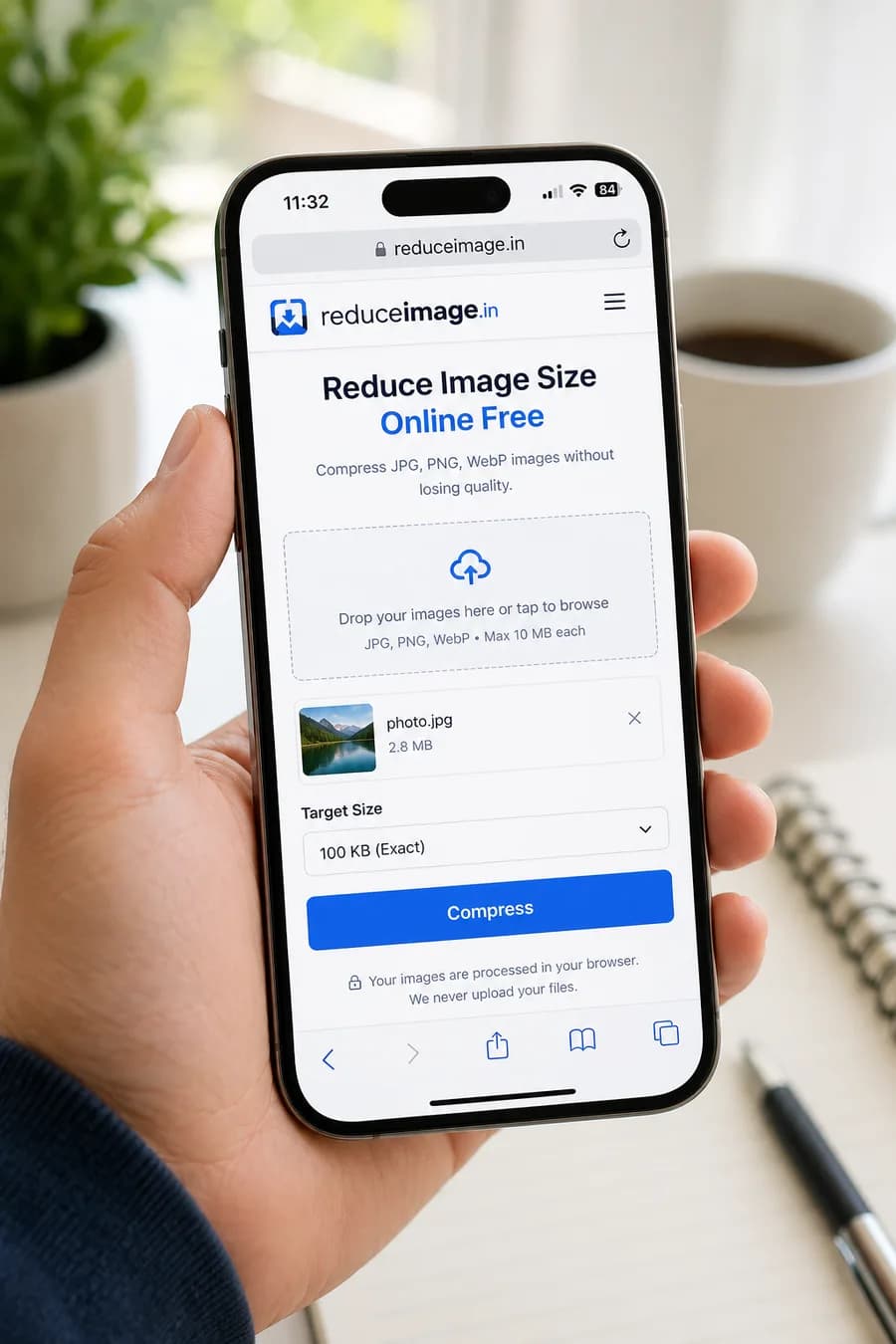
Method 1: Use reduceimage.in in Safari
Open Safari on your iPhone and go to reduceimage.in. Tap the upload area, choose Photo Library, select your image, then compress it with the quality slider or the target KB tool. When the compressed image is ready, tap Download and save it to Files or Photos.
This method is useful for government forms, college applications, job portals and KYC pages because you can choose exact pages like reduce image size to 100KB or reduce image size to 50KB.
Method 2: Use iPhone Mail Resize
The Mail app can reduce image size when you attach a photo. Start an email to yourself, attach the image, and iOS may show size choices such as Small, Medium, Large and Actual Size. Choose a smaller size and send it to yourself.
This is quick for casual sharing, but it does not let you target an exact KB value. If a form says the file must be under 100KB or 50KB, use the online KB tool instead.
Method 3: Use the Shortcuts App
The Shortcuts app can resize images by pixel width and convert them to JPEG. Create a shortcut that accepts photos, resizes the image, converts it, and saves the result. This is helpful when you repeat the same compression task often.
Shortcuts are powerful, but they take a few minutes to set up. For one-time compression, Safari is faster and works without creating anything.
Common iPhone Upload Problems and Fixes
If a portal says your file is too large even after compression, check whether it has both a size rule and a dimension rule. Some websites require a specific pixel width and height in addition to KB limits. In that case, resize first, then compress again for the cleanest final result.
If image quality looks blurry, your target may be too strict for the current resolution. Try cropping the image to the subject before compression so the algorithm spends bytes on useful detail instead of background. This usually improves clarity for profile photos and document uploads.
When downloads do not appear in Photos, open the Files app and look in the Downloads folder first. iPhone browsers often save files there by default. You can move the image to Photos from Files so it is easier to attach in forms and emails.
For repeat tasks like exam forms or KYC updates, bookmark direct tools such as reduce image size to 100KB and reduce image size to 50KB. Fixed target pages reduce trial-and-error and help you finish uploads faster during deadlines.
Best Practice Workflow for iPhone Users
Take the photo in good lighting, keep the subject centered, and avoid digital zoom where possible. Better source quality always compresses better. A clear source image can often reach strict limits like 100KB while still remaining readable after compression.
Before final submission, preview the downloaded image once at full screen and confirm that faces, signatures, or text remain clear. This simple quality check prevents rejection by portals that allow upload technically but fail manual verification later.
Useful Tools
Start with the reduce image size in KB tool, then use direct targets like 100KB, 50KB, and JPG reducer.
Detailed Checklist Before Upload
Before you compress any image, check the exact upload instruction on the destination website. Some pages ask for files below a maximum size such as 100KB, while others accept a range. Working with the exact number first helps you avoid repeated rejection errors. If a portal provides a sample image ratio or dimensions, match that format before compression so quality stays cleaner.
Use JPG for photos whenever possible because it usually gives stronger size reduction than PNG at similar visual quality. For signatures and document snippets, tightly crop the image to remove empty margins. Blank background areas still consume file bytes, so reducing the canvas often helps as much as the compression step itself.
If your compressed image still exceeds the limit, lower the pixel dimensions first and compress again. A very high resolution photo forced into a tiny 15KB or 20KB target will look poor unless you resize it down. This two-step method, resize then compress, gives better clarity than extreme compression alone.
After download, always recheck file size and open the image once to confirm readability. For form submissions, make sure faces, signatures, or document text remain visible. A technically valid file that is unreadable can still be rejected manually by verification teams.
For privacy, browser-side compression is the safer default for personal documents. You avoid unnecessary uploads and keep your files on-device while still getting a practical size reduction. This is especially useful when handling ID photos, application documents, or mobile images on shared networks.