How to Reduce Image Size in KB - Step by Step Guide
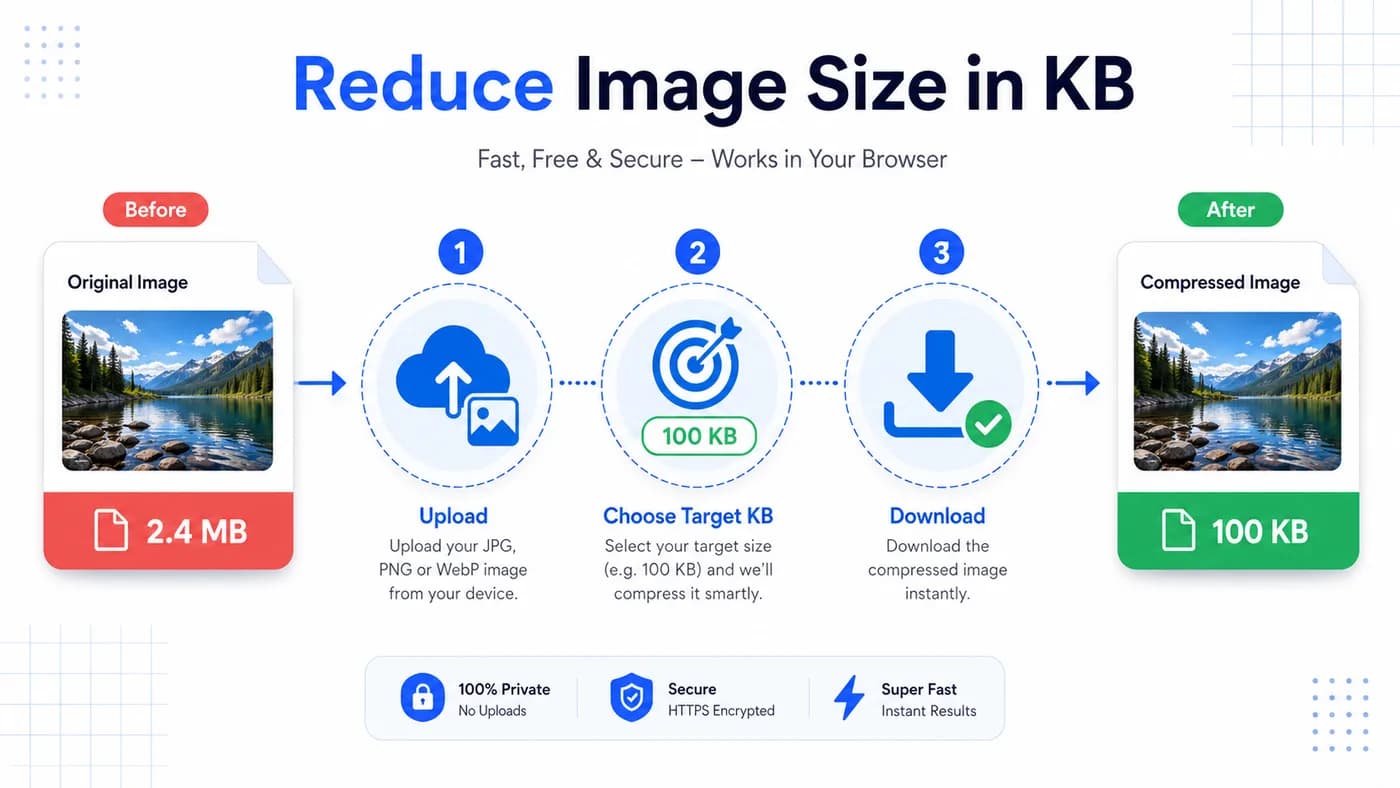
Reducing image size in KB is important when a website asks for a strict upload limit. With reduceimage.in, you can compress JPG, PNG and WebP files to a target KB size directly in your browser.
Why KB Matters
Government portals, exam forms, bank KYC pages and job application sites often set limits like 15KB, 20KB, 50KB, 100KB or 200KB. These limits help websites process uploads quickly, but they can be frustrating when your phone photo is several MB.
A KB-focused compressor solves this by aiming for the number the form actually asks for. Instead of guessing a quality percentage, you enter the target and download the result.
Method Using reduceimage.in
Open the reduce image size in KB tool, upload your image, enter the target size, and press Compress. The compressor tries multiple quality levels and keeps the best file it can find under the selected KB value.
For common limits, you can use direct pages such as reduce image size to 100KB, reduce image size to 50KB, reduce image size to 20KB and reduce image size to 15KB.
What Quality Setting to Use
For photos, 70 to 85 percent usually keeps a good balance between clarity and size. For document scans and signatures, crop the image first so the compressor does not waste bytes on blank margins.
If your file still cannot reach the target KB, reduce the image dimensions before compression or choose a page with a larger allowed limit such as 200KB or 500KB.
Troubleshooting Strict KB Limits
If an image refuses to go below a strict limit like 15KB or 20KB, the original resolution is usually too high. Reduce dimensions first, then compress. This two-step approach performs better than heavy compression alone because it removes excess pixel data before quality adjustment.
Portal rejections can also happen because of unsupported formats. When possible, use JPG for photos because it usually compresses much more efficiently than PNG. PNG is better for graphics with sharp lines, but it may stay larger at the same visual size.
Some sites cache previous failed uploads. If you repeatedly get the same error, refresh the form page, rename the file, and re-upload the latest compressed version. This avoids stale validation results from older files that were above the size limit.
Always verify final size on your device after download. A clear naming pattern like `photo-100kb.jpg` or `signature-20kb.jpg` helps you avoid mixing old and new files while submitting multiple documents in one session.
Recommended Workflow for Forms and Portals
First read the upload requirements carefully: target KB, accepted format, and any dimension limits. Then prepare the image by cropping to the required subject area. Finally use the target KB compressor and review the output before submission.
For recurring tasks, keep a small checklist: crop, compress, verify, submit. This creates consistency and reduces form errors during time-sensitive applications such as exams, recruitment windows, and scholarship deadlines.
If a page accepts up to 200KB or 500KB, do not overcompress. Choose the largest allowed range that still meets the rule so readability stays strong, especially for document photos and profile images that may be manually reviewed.
Useful Tools
Start with the reduce image size in KB tool, then use direct targets like 100KB, 50KB, and JPG reducer.
Detailed Checklist Before Upload
Before you compress any image, check the exact upload instruction on the destination website. Some pages ask for files below a maximum size such as 100KB, while others accept a range. Working with the exact number first helps you avoid repeated rejection errors. If a portal provides a sample image ratio or dimensions, match that format before compression so quality stays cleaner.
Use JPG for photos whenever possible because it usually gives stronger size reduction than PNG at similar visual quality. For signatures and document snippets, tightly crop the image to remove empty margins. Blank background areas still consume file bytes, so reducing the canvas often helps as much as the compression step itself.
If your compressed image still exceeds the limit, lower the pixel dimensions first and compress again. A very high resolution photo forced into a tiny 15KB or 20KB target will look poor unless you resize it down. This two-step method, resize then compress, gives better clarity than extreme compression alone.
After download, always recheck file size and open the image once to confirm readability. For form submissions, make sure faces, signatures, or document text remain visible. A technically valid file that is unreadable can still be rejected manually by verification teams.
For privacy, browser-side compression is the safer default for personal documents. You avoid unnecessary uploads and keep your files on-device while still getting a practical size reduction. This is especially useful when handling ID photos, application documents, or mobile images on shared networks.
Government and recruitment portals in India commonly specify strict image rules because they process high upload volumes and need uniform file handling. You will often see limits like 20KB for signature, 50KB for photo, and 100KB for profile image. Keeping a repeatable workflow for these targets can save a lot of submission time.
A reliable sequence is: crop to subject, choose target KB, compress, verify readability, and upload. If your first output is too soft, increase the target slightly if the portal allows, or use a cleaner source photo. Good source quality always improves final compression quality.
For repeated tasks, bookmark direct target pages such as 100KB, 50KB, 20KB, and 15KB. This removes guesswork and helps you move quickly during deadlines like exam forms, college admission windows, and job application cutoffs.